Numbering Commands
February 19, 2023
Last updated on September 28, 2026
Numbering commands are divided into the following categories.
───────────────────────────────────────────────────────────────────────────────────────────────────
Page Content Commands
Convert Headings
Convert headings and their content to nested bulleted lists. This is the opposite of Convert Outline. Here, headings are convert to relative indented bullets, and their contents are maintained as nested content. Applies to selected content or the entire page.
Convert Outline
Converts a bulleted or numbered lists to headings and sub-lists. This is the opposite of Convert Headings. Here, lists with indented sub-lists are converted to relative headings. A dialog is presented, from which to choose the depth of headings to apply, where Level(n) means convert top level bullets to H(n) headings and keep indented content as a sub-list. Applied to selected content or the entire page.
Number Lines
Adds sequential numbering to each line (paragraph) in the selected content.
Outline Formatting
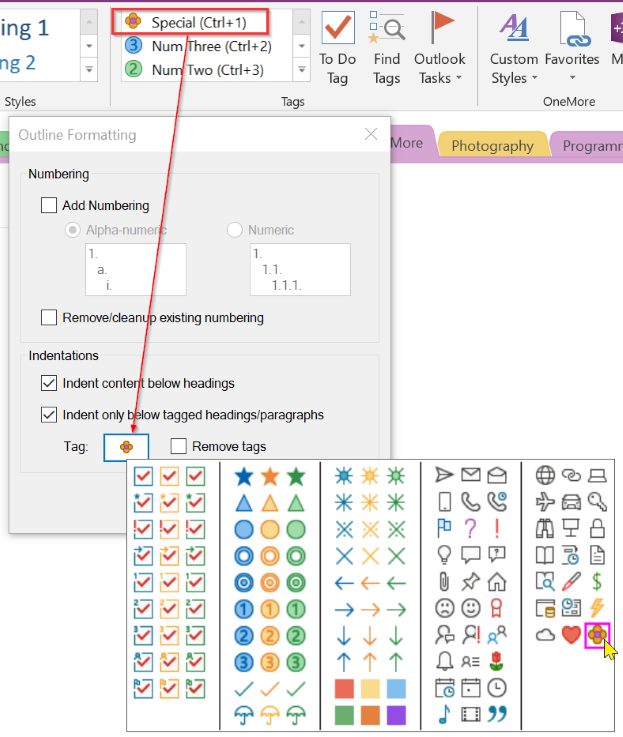
This is a powerful command to apply numbering to headings, with options to indent content below headings or indent tagged content. This is similar to the way Microsoft Word manages numbered headings.
In the dialog's Numbering section, choose to apply numeric or alphanumeric numbering to all headings on the page. Note that this is a one-time procedure so if you add new or delete old headings, re-apply numbering using this dialog. The Remove existing checkbox cleans up numbering that you've applied below; remember to tick this if you've already applied numbering, otherwise it will double-up!
The numeric numbering will prefix headings with "1.", "1.1.", "1.1.1.", etc. The alphanumeric numbering will prefix headings with "1.", "a.", "i.", etc.

The last settings you use in this dialog will be preserved. To reset the dialog back to its default settings, use the Reset Settings item from its system menu, accessed from the title bar icon.
Indenting Content
You can indent paragraphs below all headings, below tagged headings, or below tagged paragraphs. If you want to indent only below tagged headings or paragraphs, take advantage of OneNote's tagging-by-keyboard feature by customizing a tag and moving it up to one of the first eight items in the list of tags; then you can use Ctrl-# to quickly apply tags to the headings or paragraphs you want before using the Outline Formatting dialog.
Reset List Styling
Remove styling from the numbers or bullets of the list at the cursor or of the selected list items and apply the default Normal font and size.
Sort Lists
Sorts the current list or all lists on the page, with options to sort nested lists and numeric lists.
───────────────────────────────────────────────────────────────────────────────────────────────────
Hierarchy Commands
Date stamp pages in section
Prepends the title of each page with the created date of the page using the form YYYY-MM-DD. If a page title already contains that value, no changes are made. This command is available from the Extra menu or by right-clicking a section.
Number Sections
Adds sequential numerical prefixes to all sections in the current notebook. Each section group is treated independently.
Remove Section Numbers
Removes the numerical prefixes from all sections in the current notebook that were previously added using the Number Sections command.
Number Pages
Adds sequential prefixes to all pages in the current section using one of two different numbering schemes as shown in the dialog:

Remove Page Numbers
Removes the numerical prefixes from all pages in the current section that were previously added using the Number Pages command.
#omwiki #omcommands
© 2020 Steven M Cohn. All rights reserved.
Please consider a sponsorship or one-time donation to support ongoing development
Created with OneNote.