Favorites
February 19, 2023
Last updated on July 31, 2026
OneMore favorites in OneNote work just like favorites in a Web browser; mark a page or section as a favorite and it will appear in the Favorites menu. A quick click will navigate to that page or section.
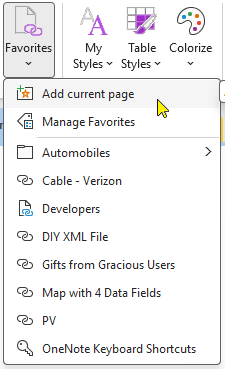
To add a section or section group to the favorites menu, right-click on the section or section group and choose Add to Favorites. When the favorite is activated, focus is returned to the most recently visited page in that section or section group.
Favorites can be organized into folders. See the Manage Favorites topic below.
Add current page
Default shortcut is Ctrl + Shift + A
Adds the current page to the favorites menu.
Manage Favorites
Default shortcut is Ctrl + Alt + Shift + F
Opens the Manage Favorites dialog to sort, reorder, rename, validate, delete, import and export favorites.
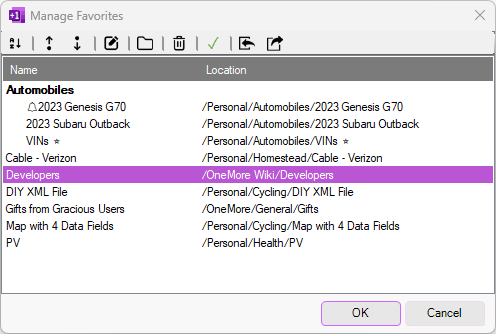
The Manage Favorites dialog can:
- Create folders to organize favorites.
- Sort favorites alphabetically. Folders are always sorted alphabetically and are shown at the top.
- Drag and drop favorites to reorder them within their folder or to organize them across folders.
- Double-click a folder or a favorite, or click the Rename button to rename it.
- For favorites, Rename applies a user-entered friendly name or "alias" to the favorite; the base name is still known and you can revert the alias back to the base name using Rename.
- Delete favorites or folders. Deleting a folder will delete all favorites within that folder.
- Check and update favorites for valid targets and name changes as follows:
- Check that every favorite points to a reachable target; any invalid favorites will be highlighted in red.
- Update the base name of favorites that point to pages with updated names; if a page has a user-supplied alias override, then you'll still see that alias and, if desired, reverting the alias will inherit the new page name.
- Import and Export favorites to share across machines. These are also available as CLI commands.
Quick Access With the Favorites Dialog
Default shortcut is Alt + F
While the Favorites menu is a first-class citizen of the OneMore ribbon group, it's sometimes faster to use the keyboard. Press the keyboard shortcut Alt + F to open the Favorites dialog
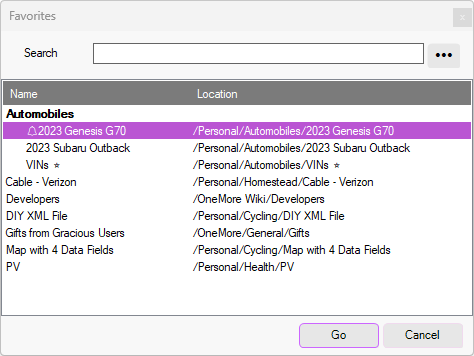
Use the arrow keys to navigate the table or start typing in the Search box to find a favorite by its name or location.
Click the "…" button to display the option menu:
- Click Add Current Page to add the current page to the list of favorites.
- Click Manage Favorites to open the Manage Favorites dialog.
OneNote Keyboard Shortcuts
This is a special link that can be enabled in Settings/Favorites to quickly view the OneNote and OneMore keyboard shortcuts page. Once enabled, this item will be added to the Favorites menu

The first time this link is clicked, OneMore will download and import a keyboard shortcuts reference page under the current section and show that page. It may take a couple of seconds to appear.
Subsequent clicks will simply show that page again. Since it is now cached, it doesn’t need to be downloaded again.
This page can be moved to any open notebook or section and OneMore will still find it. But if the page is deleted, subsequently clicking the Favorite link will download it again.
#omwiki #omcommands
© 2020 Steven M Cohn. All rights reserved.
Please consider a sponsorship or one-time donation to support ongoing development
Created with OneNote.