Navigator and History
March 4, 2023
Last updated on September 6, 2026
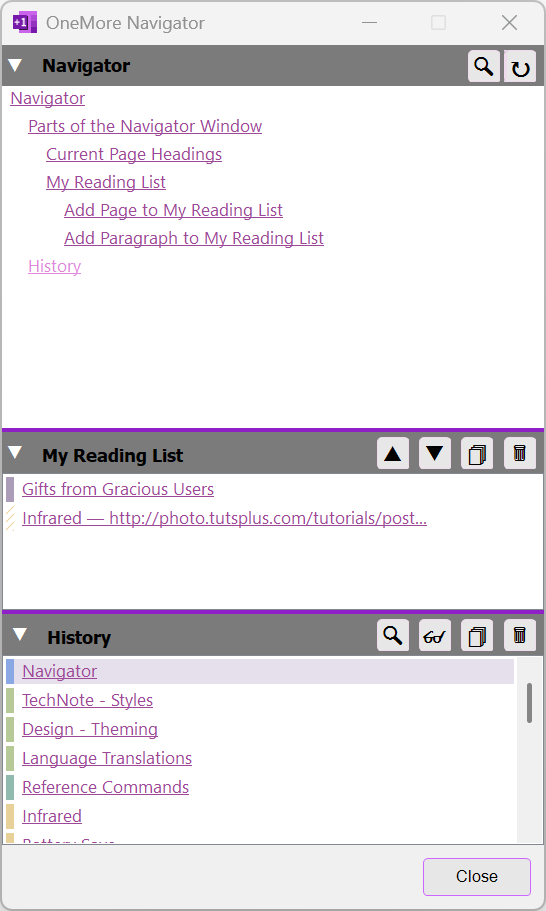
The Navigator window is an assistant that keeps track of your visited pages, lets you manage an ordered reading list, and helps navigate through headings of the current page. The navgation feature includes:
- The Navigator window is availble from either from the OneMore menu or by pressing Alt + Shift + N
- The most recent pages are listed, in reverse order of navigation, from the OneMore Navigator ribbon button
- The History window provides quick keyboard access to the most recently visited pages; open it by pressing Alt + Shift + H
These, and related commands are described below.
As you navigate to each page, it is not added to the history list immediately. Only after you've viewed a page for a minimum amount of time, will OneMore add it to the history list. This time limit can be customized in Settings.
Your navigation history is recorded even when the Navigator window is not open. OneMore records this history in a local file; none of this information is transmitted off of your local machine.
The Navigator window is "persistent", meaning it tries to stay above other window along with OneNote. If it gets in the way, you can minimize like any other window. The standard Windows shortcut to minimize the current window is Win + Down
Parts of the Navigator Window
Current Page Headings
This pane displays a hierarchy of headings on the current page. You can use this to quickly navigate a long page, by following the heading map rather than scrolling and searching.
- Click the filter button to quickly filter the list of headings to something specific, matching the text you type.
- Click the refresh button to reload the updated headings; this pane is not updated automatically as you navigate.
My Reading List
The My Reading List pane provides a way to manage a temporary ordered list of reference pages that you intend on reading or getting back to at some point, and then removing from this list once done. This is more of a short-term holding pen for pages, whereas the Favorites menu is intended for long-term reference.
- Click the up/down arrow buttons move one or more items up or down in the list.
- Click the copy button to copy the name and hyperlink of selected pages to the clipboard.
- Click the delete button to remove selected pages from the reading list.
- Right-click items to show options
These are related command on the Navigator ribbon menu.
Add Page to My Reading List
Default shortcut is Ctrl + Shift + B
Adds the current page to the My Reading List panel in the Navigator window. Clicking the link in My Reading List will bring you back to the last position on this page.
Add Paragraph to My Reading List
Adds the current paragraph to the My Reading List panel in the Navigator window. Clicking the link in My Reading List will bring you back to this paragraph on this page.
|
History
The History pane shows pages that you've visited, even across OneNote session. This is a limited list, as specified in Settings, meaning that it will only track the latest n number of pages that you visited. Once the history pane contains that number of pages, as you visit a new page it is added to the top of the list, the oldest page will be removed the bottom of the list.
The Navigator records the time that you started reading each page. The time and the full path to the page is shown in a tooltip as you hover over each page in the History pane.
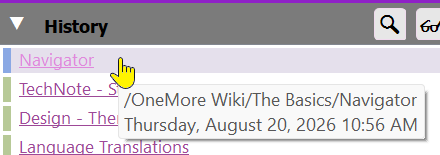
The Copy button copies the name and hyperlink of one or more pages in the history list to the clipboard. These can then be pasted into another page or another editor.
- Click the filter button to quickly filter the list of pages to something specific, matching the text you type.
- Click the reading glasses button add selected items to the the reading list.
- Click the copy button to copy the name and hyperlink of selected pages to the clipboard.
- Click the delete button to remove selected pages from the history list; press Ctrl + A to select all items and then delete to clear the whole list.
- Right-click items to show options
There are two other ways to access the history list - from the ribbon and using the History window.
History in the Ribbon
The OneMore Navigator button on the ribbon displays the most recently viewed pages.
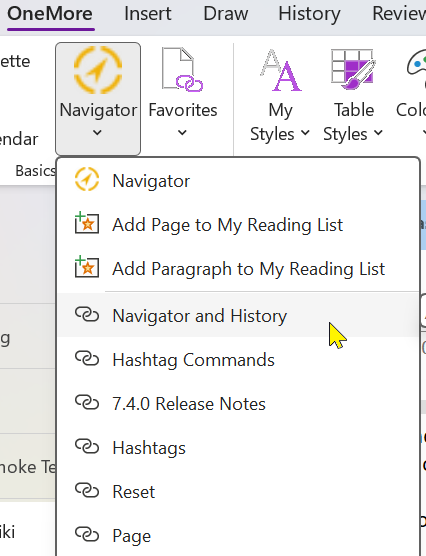
This may be an abbreviated list depending on the depth you've selected in Settings; to see the full list, use either the Navigator window or the History window.
History Window
Default shortcut is Shift + Alt + H
The History window is a keyboard-accessible way of quickly viewing the navigation history and jumping to a recently viewed page. It includes a simple text filter to easily find titles by keyword. Select a page and press Enter or click OK to jump to that page.
#omwiki #ombasics
© 2020 Steven M Cohn. All rights reserved.
Please consider a sponsorship or one-time donation to support ongoing development
Created with OneNote.